
From Image to Fuse Bead Pattern: A Practical Beadot Workflow
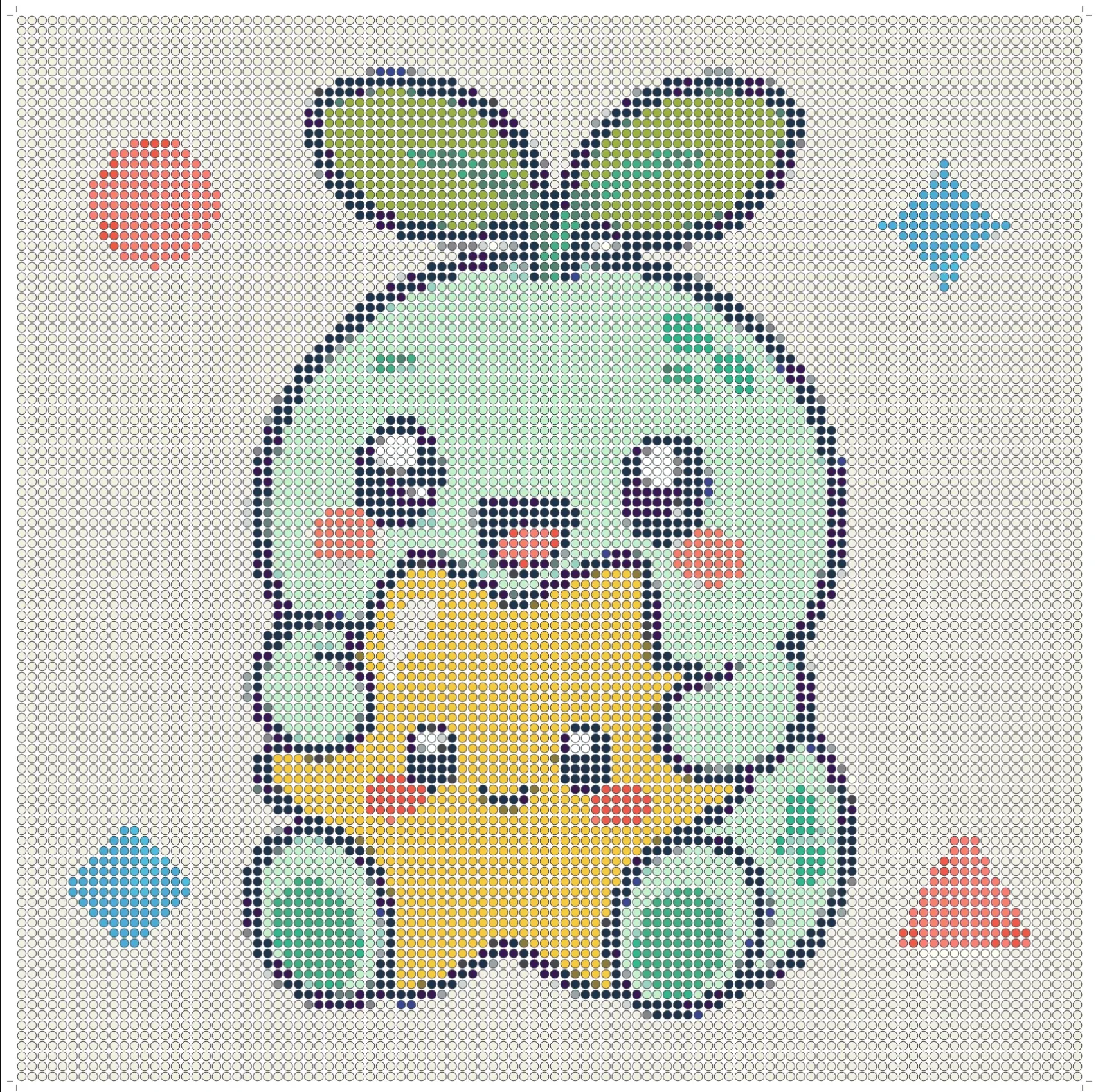
Finding an image you want to turn into bead art is easy. Turning it into a pattern you can actually build is harder. You need the right canvas size, a usable color palette, an accurate bead count, sensible board divisions, and a way to resume after a break.
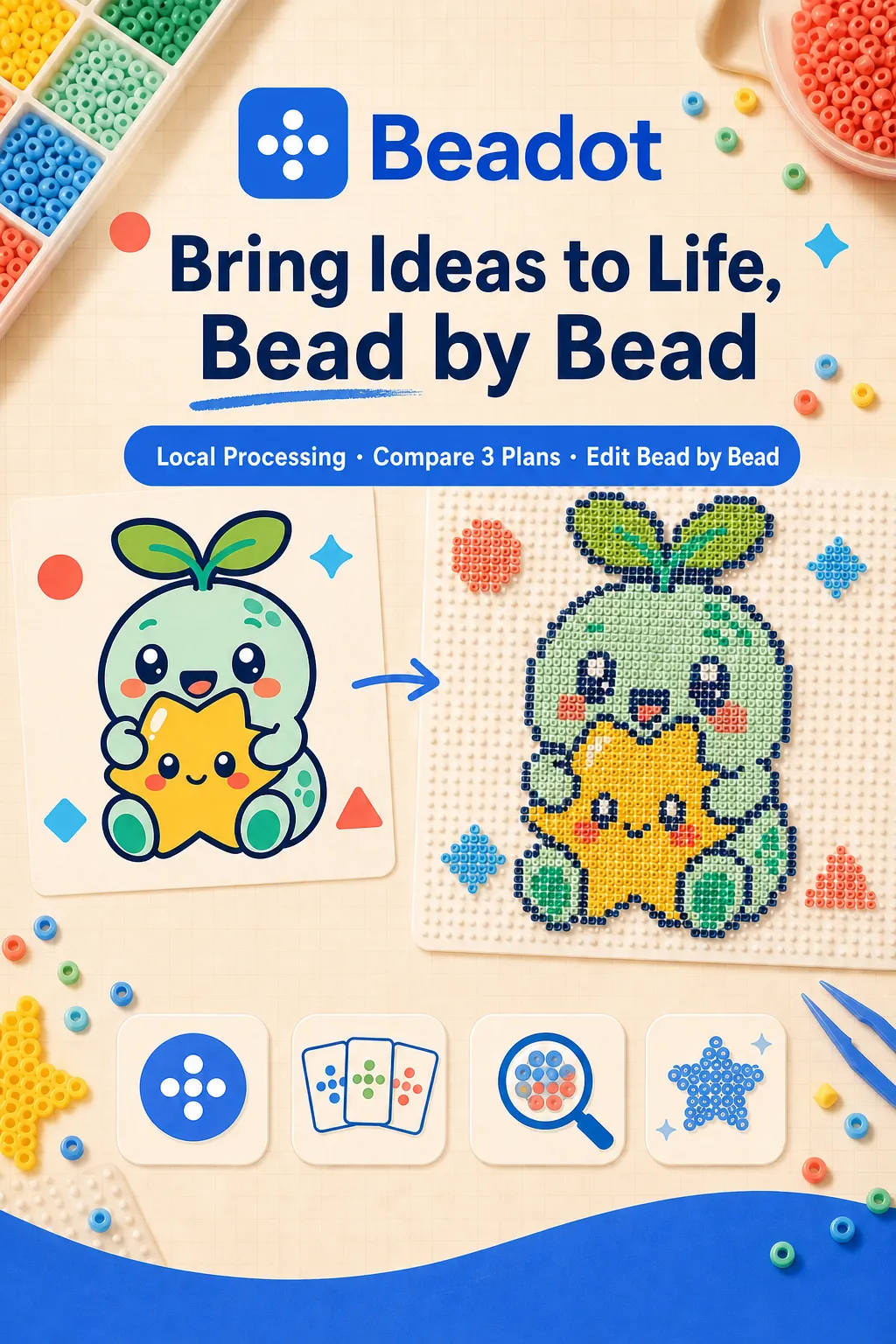
Beadot brings those decisions into one in-browser workflow. It works as a fuse bead pattern maker and inventory assistant: import a JPG, PNG, or WebP image; compare three pattern plans; edit individual beads; review materials against your stock; track the build; and export files for printing, planning, or later editing.
Quick answer: If you are looking for an image-to-bead-pattern workflow rather than a simple pixel filter, Beadot lets you compare material-saving, balanced, and high-fidelity versions before you commit. Images, the pattern matrix, inventory, and build progress are processed locally in your browser by default, and the core workflow does not require an account.
See what Beadot is designed to do →
Why a buildable pattern needs more than pixelation
A basic perler bead pattern generator may reduce an image to a grid and stop there. A real project raises more questions:
- Will the canvas fit the pegboards you own?
- Does the pattern use too many near-duplicate colors?
- Are the eyes, outlines, lettering, or other identifying details still readable?
- How many beads of each color do you need, and what is already in stock?
- How should a large design be split across boards?
- Can you print the pattern, share a material list, and continue editing later?
Beadot treats pattern creation, material planning, and building as one connected process. That makes it useful for Perler-style projects, Hama bead designs, and other fuse bead systems without pretending that every reference image has one “correct” conversion.
The complete image-to-bead-pattern workflow
1. Import the reference and choose a realistic canvas
Open the Beadot bead pattern studio and import a JPG, PNG, or WebP file. Before generating a pattern, crop away background that does not contribute to the subject and choose dimensions that match the finished object you want to make.
A larger canvas preserves more detail, but it also increases bead count, build time, and the number of boards. A smaller canvas is faster and cleaner, but facial features or lettering may disappear. Start from the intended object—a keychain, coaster, small display piece, or wall-sized build—rather than choosing resolution in isolation.
2. Compare three plans instead of accepting the first result
Beadot presents three approaches for the same reference:
| Plan | Priority | Best fit |
|---|---|---|
| Material-saving | Fewer colors and lower material pressure | Small projects, limited stock, quick builds |
| Balanced | A practical compromise between recognition, palette size, and materials | Most everyday projects |
| High-fidelity | More of the original color variation and detail | Portraits, illustrations, gradients, or larger canvases |
Do not judge only from a small preview. Zoom in on outlines, eyes, mouths, lettering, and narrow connections. Also look for clusters of very similar colors that increase sorting effort without adding meaningful detail.

3. Select the bead palette and edit individual cells
Once you have the strongest overall plan, choose the relevant palette series and refine the places that define the design. Beadot supports multiple palette series and per-bead editing, so the generated matrix is a starting point rather than a locked result.
Prioritize edits in this order:
- Repair broken outlines and remove isolated beads.
- Restore identifying features such as eyes, highlights, mouths, and text.
- Simplify tiny regions that introduce a new color for only a few beads.
- Check lines that cross board boundaries.
- Substitute close colors when the original choice is unavailable in your stock.
This is where a Hama bead pattern maker or fuse bead tool becomes genuinely practical: the final pattern reflects both the source image and the materials you can use.
4. Turn the bead count into an inventory decision
The material summary tells you how many beads each color requires. Beadot also includes a bead inventory tracker with transaction history, so you can compare required quantities with what you already own.
Use it to:
- record quantities by series and color code;
- see shortages before starting a build;
- log restocking and project consumption;
- watch material totals change as you refine the palette;
- make intentional use of colors that have been sitting unused.
For makers who run several projects at once, inventory is not an afterthought. It is part of deciding whether a pattern is buildable today.
5. Build by board or by color and keep your place
Large patterns often fail during execution, not generation. Beadot supports board-by-board work and progress tracking, making it easier to divide a design into units you can verify.
You can work in whichever rhythm suits the project:
- By board: finish one pegboard before moving to the next;
- By color: place one color across the active area before switching;
- Hybrid: complete each board color by color and then mark the board done.
Update progress whenever you stop. When you return, you can continue from a recorded state instead of recounting the entire design.
6. Export the format that matches the next step
Beadot supports several outputs:
- PNG for a quick visual reference or sharing;
- PDF for a printable bead pattern you can keep beside the work area;
- CSV for color counts, purchasing, or material preparation;
- Project files for backup and continued editing.
Before exporting, confirm the palette series, canvas dimensions, board layout, and material totals—especially if you substituted similar colors.
A printable bead pattern is useful only if it stays readable
When preparing a PDF, think about how you will use it at the table. A good printable bead pattern should let you locate cells quickly, distinguish neighboring colors, and understand board boundaries without repeatedly returning to the full image.
For a large project, print or view the pattern at a scale that keeps the grid legible. Pair the visual pattern with the material summary, and keep the editable project file as the source of truth if you make changes during the build.
Local browser processing and project backups
Reference images may be personal photos, unpublished artwork, commissioned material, or ideas you simply do not want to upload. Beadot processes imported images, the pattern matrix, inventory, and progress locally in the browser by default. The core workflow works without signing in.
Local processing also means that backup habits matter. Export a project file after meaningful editing sessions, and store that file somewhere you already use for important creative work. That gives you a portable copy you control.
Who is Beadot for?
Beadot is a good fit when you want to:
- convert a photo or illustration into a buildable fuse bead design;
- compare material use with visual fidelity before choosing a plan;
- work with multiple bead palette series;
- adjust individual beads instead of accepting an automatic conversion;
- plan against your existing color inventory;
- split a large project across boards and track progress;
- export a printable pattern, material list, or editable project file.
Frequently asked questions
Is Beadot a perler bead pattern generator?
It can be used for Perler-style fuse bead projects, but its workflow goes beyond pattern generation. It includes plan comparison, individual bead editing, multiple palette series, material statistics, inventory history, board planning, progress tracking, and several export formats.
Can I use it as a Hama bead pattern maker?
Yes, when the selected palette and physical bead size match the materials in your project. Always check the color series and board dimensions before building.
Does Beadot upload my reference image?
Imported images, the pattern matrix, inventory, and build progress are handled locally in your browser by default. The core pattern-making workflow does not require an account.
Which files can I import and export?
You can import JPG, PNG, and WebP images. Exports include PNG, PDF, CSV, and a project file for continued editing or backup.
Can it track beads I already own?
Yes. The inventory and transaction features let you record quantities, log changes, and compare project requirements with available stock.
Start with one image and make the next decision visible
The best fuse bead pattern maker is not the one that produces the most detailed thumbnail. It is the one that helps you decide what to build, what materials you need, where each bead goes, and how to continue after a break.
Import one image, compare the three plans, refine the defining details, and check the inventory before you commit to a full build.